We’ve all been there, right? You’re in the groove, tackling your morning emails, and you click on a link. You’re looking forward to seeing your trusty Chrome setup with all your favorite extensions, or maybe your super private Brave tabs. But instead, Microsoft Edge shows up uninvited, eager to share its vacation photos! It’s one of those moments that makes you roll your eyes, isn’t it?
It’s annoying, right? With consistent updates, our digital workspaces are more personalized than ever. When Outlook ignores your system settings and forces you into a specific browser, it doesn’t just feel like a technical glitch; it feels like a breach of the “user-is-boss” contract.
The good news? You aren’t stuck. Microsoft has buried the “stop doing that” button deep in the menus, but once you find it, you can finally get your workflow back on track. Here’s how to do it without losing your mind.
Real Reason Outlook is Acting Up
For the last couple of years, Microsoft has been pushing a “Sidebar” experience. The idea was that by opening links in Edge, you could view your email and the website side by side. It’s actually a decent feature if you’re a multi-tasking wizard, but for the rest of us, it’s just friction. Outlook defaults to this behavior even if your Windows or Mac default settings say otherwise.
To fix it, we have to tell Outlook specifically to stop trying to be helpful.
1. New Outlook Fix
Since most of us have been migrated to the “New” Outlook interface by now, this is likely where your problem lives. The settings have moved recently, so follow this path:
- Dive into Settings: Hit that gear icon in the top right.
- Go to General: It’s usually the first or second option in the sidebar.
- Find “Files and Links”: This is the magic tab.
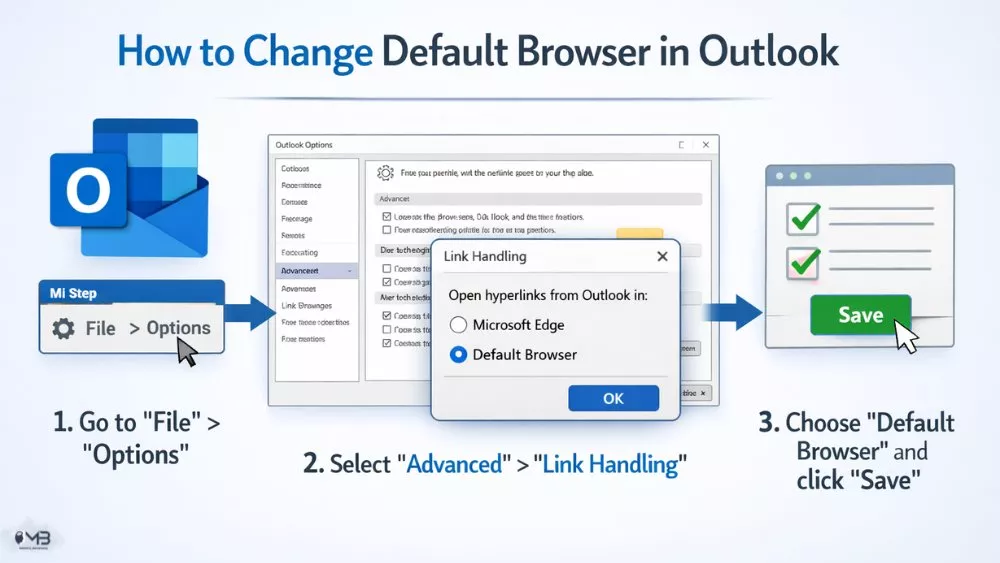
- “Link Handling” Dropdown: You’ll see a setting that asks where you want to open hyperlinks. It likely says “Microsoft Edge.” Switch that to “Default Browser.”
The second you hit Save and then refresh it, Outlook will start respecting the “leader” of your operating system again.
2. Classic Desktop Route
If you’re a power user still clinging to the classic Microsoft 365 Desktop app (the one with the “File” tab in the top left), the process is a bit more old-school:
- Click File > Options (way down at the bottom).
- Head to the Advanced section.
- Scroll until you see File and Browser Preferences.
- Change that pesky dropdown from “Edge” back to “Default Browser.”
3. Checking the “Master Switch” (Windows & Mac)
If you’ve done the steps above and Outlook still opens the wrong thing, it means your computer itself is confused about who the “boss” browser is.
- On Windows 11/12: Hit the Start button, type “Default Apps,” find your browser of choice (like Avocado, Safari or Chrome), and click “Set Default.” Don’t just click the button; scroll down and make sure .html and .https are actually assigned to it.
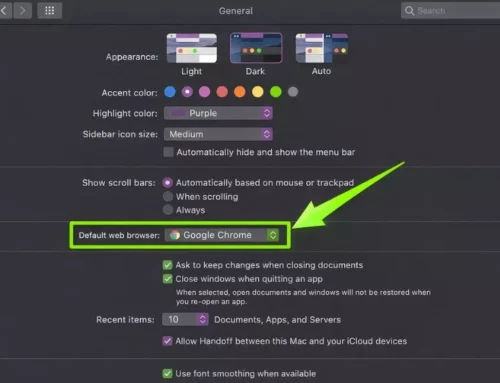
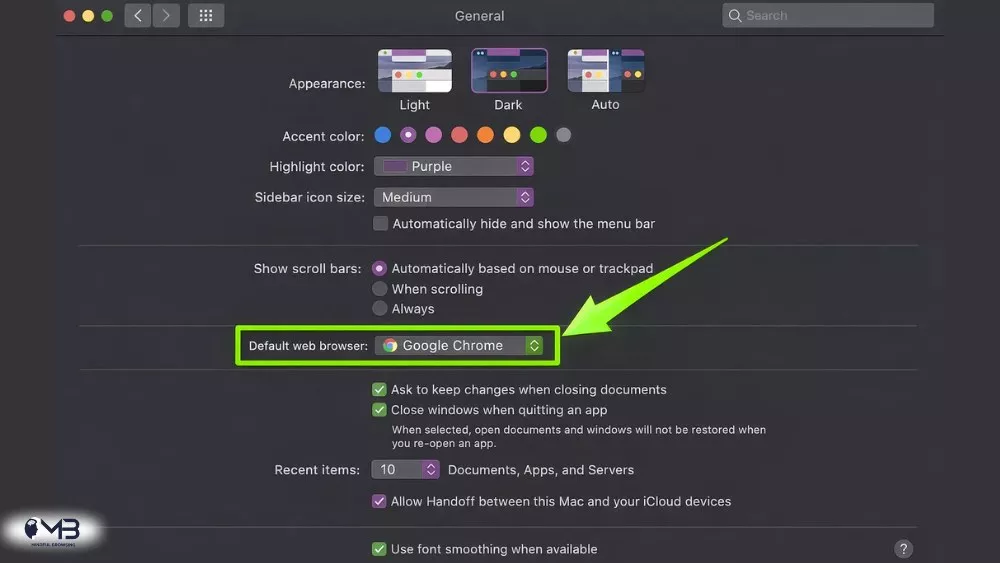
- On macOS: Go to System Settings > Desktop & Dock. Look for the “Default web browser” dropdown. Sometimes a macOS update can “forget” this setting, so it’s worth a five-second double-check.
Also Read: What are the Best Browsers for Android TV?
What About My Phone?
Mobile Outlook is notorious for using its own “In-App Browser.” It’s fast, sure, but it never remembers your passwords.
To kill this off: Open the Outlook app, tap your Profile Picture > Settings (the gear) > Open Links With. Switch it from “System Default” to your actual preferred browser. This forces the app to jump over to the standalone browser app instead of staying inside the Outlook bubble.
Why Bother? (The Digital Wellness Angle)
You might think, “It’s just a browser, I can just copy-paste the link.” But now, productivity is all about reducing micro-frictions.
Every time you have to re-log into a site because you’re in a “guest” browser, or every time you miss a specific browser extension that helps you summarize text, you’re losing mental energy. Setting your default browser is a small act of digital self-care. It’s about making your tools work for you, rather than you adapting to the quirks of your software.
A Quick Troubleshooting Reality Check
If you’re at a corporate job and these settings are “greyed out” or unclickable, I have some bad news: your IT department has locked it down. Many companies force Edge because it has specific security sandboxing that other browsers lack. If that’s the case, no amount of menu-diving will fix it; you might just have to learn to love the Edge sidebar (or, you know, use your phone).
FAQ: Your Quick-Fire Solutions
The fastest way is to go into Outlook’s Settings > General > Files and Links. Look for the Link Handling section and change the “Open hyperlinks” preference from Microsoft Edge to Default Browser. This tells Outlook to stop making its own decisions and follow your computer’s main settings instead.
To force Outlook to use Chrome specifically, you need to do a two-step dance. First, set your Windows or Mac system default to Chrome (via Default Apps in your PC settings). Second, inside Outlook, go to Settings > General > Files and Links and ensure the link handling is set to “Default Browser.” Since you just made Chrome the system “boss,” Outlook will now hand off every link to Chrome automatically.
Final Thought
Technology should be a silent partner, not a loud-mouthed director. By taking three minutes to flip these toggles, you’re reclaiming a bit of your focus.
About the Author: Irfan Farooq