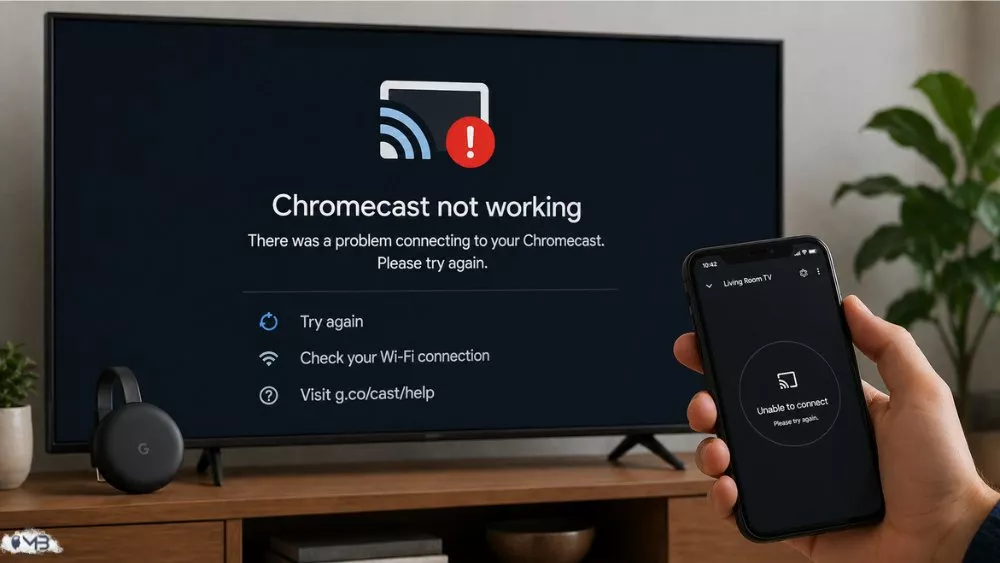
Imagine settling in to watch your favorite show on your Android TV, only to find that your Chromecast is unresponsive. Whether your TV screen remains black, the stream stutters, or the device disappears from your phone’s list, this is a common and frustrating issue.
Luckily, you do not have to be an IT expert to get things back on track. Most Chromecast meltdowns are caused by tiny digital glitches that are surprisingly easy to fix. Let’s dive into a few hands-on ways to get your movie night rescued.
Quick Fixes to Try First
Before you start messing with your home internet or pulling cables out of the wall, let’s look at the simple stuff. You would be shocked by how many tech issues are solved by just flipping a metaphorical switch.
1. Ditch the TV USB Port for Power
It is incredibly tempting to just plug the Chromecast’s power cord directly into the USB slot on the back of your television. It looks cleaner and saves a wall plug, right? Unfortunately, most TV USB ports do not pump out enough steady electricity. This lack of juice causes the Chromecast to randomly reboot, drop Wi-Fi connections, or fail to load streams. Grab that original wall adapter and plug it straight into a power strip or wall outlet instead.
2. Give Everything a Quick Breather
We have all heard the joke about turning things off and on again, but there is a reason it is the number one rule in tech support. Computers and streaming sticks hoard temporary data that can eventually clog up their processing.
- The Chromecast: Pull the power cord out of the unit, count slowly to thirty, and plug it back in.
- Your Casting Device: Give your smartphone, iPad, or laptop a standard restart.
- The Internet Router: Unplug your home router for about a minute. This forces your network to assign fresh digital pathways and usually clears up hidden connection conflicts.
3. Double-Check Your Wi-Fi Bands
This is easily the most common trap people fall into. For casting to work, your phone and your Chromecast must be sitting on the exact same internet frequency. Plenty of modern routers broadcast two separate signals: a 2.4 GHz band and a 5 GHz band. If your smartphone accidentally jumped over to the 5 GHz band while your Chromecast is chilling on the 2.4 GHz band, they will not be able to see or talk to each other.
Digging a Little Deeper
If those quick maneuvers did not do the trick, it is time to look at the software and physical placement of your setup.
1. Look for App Updates
Software that has fallen behind can cause major communication breakdowns between your hardware.
- Open up your phone’s app store and check if the Google Home app needs an update.
- Make sure the specific streaming app you are trying to use (like Netflix, Hulu, or YouTube) is running its latest version.
- If you are attempting to cast tabs from a laptop, check the top right corner of your Chrome browser to see if an update is pending.
2. Get the Device Out of the Dark
The area directly behind a massive flat-screen television is actually a terrible environment for wireless signals. You have thick metal mounts, a maze of power cables, and the physical body of the TV blocking the signal from reaching your router. If your Chromecast came with a short HDMI extender cable, use it! This lets the little puck dangle slightly away from the TV chassis, instantly giving it a much better line of sight to your Wi-Fi signal.
The Nuclear Option: A Hard Reset
When you have exhausted every other trick in the book and the device is still acting like a paperweight, it is time to wipe the slate clean. A factory reset will blast away all saved settings and return the Chromecast to the exact state it was in when it left the factory. You will have to go through the setup process again, but it usually fixes the deepest software bugs.
How to Wipe Your Chromecast:
- Chromecast with Google TV (The white ones with a remote): Keep the device plugged into the TV and powered up. Find the small button on the back of the puck and hold it down. The LED light will start flashing yellow. Keep holding that button until the light turns solid white, then let go.
- Older Generations (Gen 2, Gen 3, and Ultra): While it is plugged in, hold the physical button on the side of the device. The light will flash orange or red, and will eventually flip to solid white. That is your cue to let go.
- App Method: If your Google Home app can still see the device, tap the device’s icon, hit the gear icon for settings, tap the three dots in the top corner, and select Factory Reset.
Once the reset finishes, open your Google Home app and set it up as a brand-new device.
Summary
While a stubborn Chromecast can easily ruin a scheduled movie night, the hardware itself rarely breaks down permanently. By isolating the power source, making sure your Wi-Fi networks match up perfectly, and falling back on a hard reset when necessary, you can get past almost any glitch.
About the Author: Hamza Hamid