If you’ve ever been mid-scroll on the internet or halfway through a YouTube video and your screen suddenly flickered, turned black, or turned rendered text into a blurry mess, you aren’t alone. It’s a common headache from last year. Usually, the issue isn’t with your internet or a virus; it’s a specific setting in Google Chrome called Hardware Acceleration.
What’s Actually Happening under the Hood?
Basically, Chrome tries to be helpful. By default, it handles the heavy lifting like rendering 3D graphics or high-res video and hands it over to your Graphics Card (GPU) instead of your main processor (CPU).
While this usually makes Chrome lightning-fast, issues arise when:
- Graphics drivers become outdated or buggy.
- Operating system updates clash with Chrome’s code.
- Overheating causes the GPU to throttle.
When your browser and GPU stop communicating properly, the visual glitching starts.
How to Disable Hardware Acceleration (Step-by-Step)
Chrome moves things around in its menus every so often, but here is the most direct path to killing this setting right now:
- Hit the Three Dots: Look at the top right of your browser. Click those three vertical dots to open the main menu.
- Go to Settings: It’s near the bottom of that list.
- Shortcut: Don’t bother hunting through the sidebar. Just go to the search bar at the very top of the Settings page and type “Hardware.”
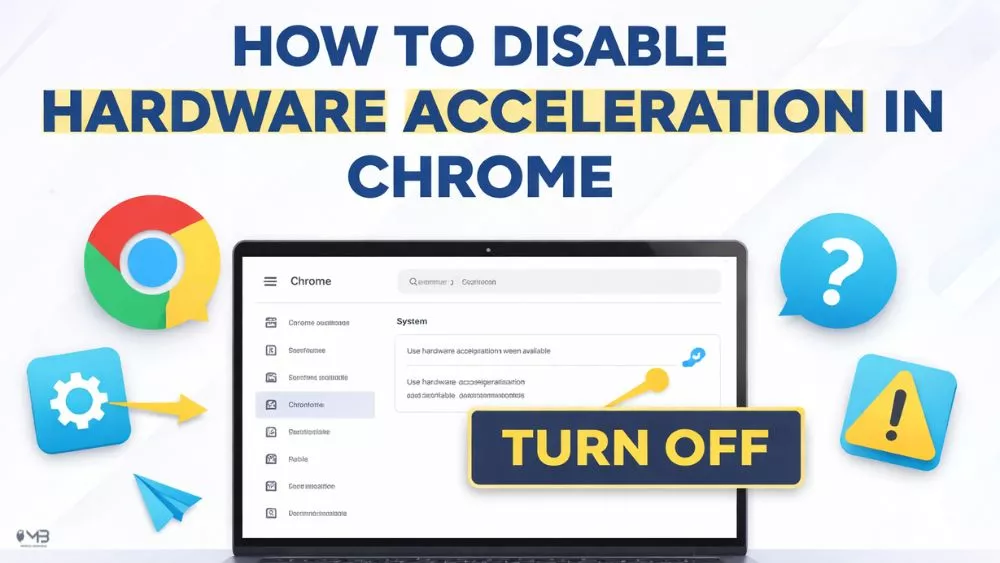
- Flip the Toggle: You’ll see an option that says “Use graphics acceleration when available.” Click that blue switch so it turns gray.
- Relaunch: A little button will pop up asking you to restart Chrome. Click it. (Just make sure you don’t have an unsaved Google Doc or a half-written email open in another tab!)
Is this a Permanent Fix?
Honestly? It’s a great band-aid. If your browser stops crashing the moment you turn this off, you’ve found your ghost in the machine.
However, as we move into 2026, websites are getting visually heavier. Running everything through your CPU can sometimes make your laptop fans spin like a jet engine or drain your battery faster.
If disabling this fixed your flickering, my advice is to check for a Graphics Driver update (through Windows Update or your GPU software like NVIDIA GeForce Experience). Once your drivers are current, try toggling hardware acceleration back on. If the glitches stay gone, you’ve got the best of both worlds: stability and speed.
When to Keep it Off
If you’re on an older machine or a budget laptop where the “dedicated graphics card” is basically non-existent, you might just want to leave it off forever. Your CPU can handle the load just fine for basic browsing, and it’ll save you the headache of those random black-screen freezes.
About the Author: Irfan Farooq