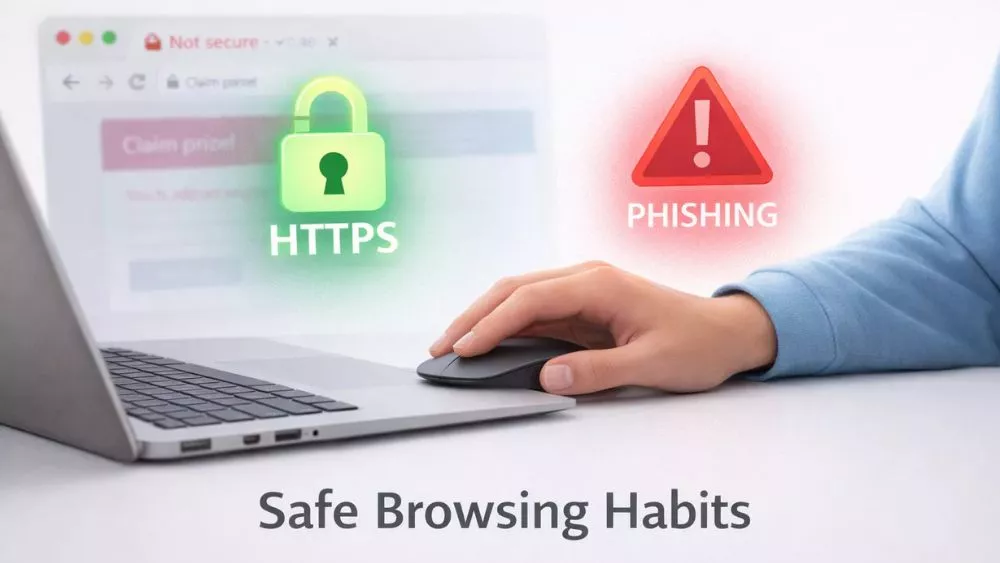

As a parent, I’ve experienced firsthand how the internet, despite its vast array of educational and entertainment resources, can sometimes be a dangerous place for children. The Internet is a double-edged sword. While it’s a goldmine for learning, it also harbors risks. Protecting young users from the risks lurking online can be challenging. That’s why I believe it’s essential for parents and guardians to learn how to block websites on Android devices. This knowledge has been invaluable in maintaining a secure, age-appropriate online environment for my children.
From my perspective, blocking websites on an Android phone serves several critical purposes. I’ve found it to be an effective way to protect my children from explicit content that is unsuitable for their age, such as adult material or violent media.
Additionally, I’ve seen how some websites contain inaccurate or misleading information that could tempt children into engaging in risky or unlawful behavior. Beyond just content concerns, blocking adult websites permanently on mobile phones has also been a key measure in our household to prevent the spread of malware, safeguarding our entire family network. Research also proves that we should be aware of malicious gaming apps on the Play Store.
Moreover, by limiting website access, I’ve been able to better manage my children’s online time, reducing the chances of digital addiction and exposure to potential threats like bullies or predators. Finally, it also helps eliminate those annoying ads, pop-ups, and malicious warnings, ensuring a smoother and safer browsing experience for everyone in the family.
7 Ways To Block Websites on Android Devices
“Can I block a website on my phone?” is a very common question on the internet. Yes, blocking adult websites is easily possible and our post is just about that. Make sure you read all these tips to find out how to block websites on Android.
Block Websites on Android Without any App
1. Google SafeSearch
Just like Safari or Chrome offers a filtering tool called SafeSearch that helps block websites containing explicit material, such as adult content and inappropriate images, from appearing in Google Search results. While it’s not foolproof, it significantly reduces the amount of explicit content that shows up. This feature is built into their search engine and is accessible on all Android devices.
- Open the Google app.
- Tap your profile picture and choose ‘Settings.’
- Select ‘Privacy & Safety.’
- Tap ‘SafeSearch‘ and select ‘Filter.’
Understand that SafeSearch only sifts results from Google Search. It doesn’t block explicit content from other search engines.

2. Confine Website Entry by Modifying the Host File
You might modify your host file, but this involves a rooted Android phone. This method demands some technical expertise, and I advise against it for most users. Rooting your phone comes with several risks:
- Your device might be rendered completely unusable.
- Your warranty will be voided.
- Your phone’s security will be compromised, making it more prone to malware and hacking.
- You might lose access to secure and legitimate apps on the Google Play Store.
3. Use OpenDNS (The Smart Way to Filter)
If you’re looking for a reliable way to filter the web without installing heavy apps, OpenDNS is one of the best free options out there. It essentially acts as a middleman for your internet; when you try to visit a site, OpenDNS checks it against your personal block list first.
Easiest Method (For Android 9 and Above)
Most of us are on newer versions of Android, which makes this a breeze. You no longer have to mess with individual Wi-Fi settings or root your phone to get system-wide protection. Now, you can use the “Private DNS” feature to protect your phone on both Wi-Fi and mobile data.
- Go to Settings and look for Network and Internet. (On Samsung phones, it’s usually under Connections > More connection settings).
- Tap on Private DNS.
- Choose the option for Private DNS provider hostname.
- Type in familyshield.opendns.com if you want a “set it and forget it” solution that automatically blocks adult content. If you want more control, use dns.opendns.com.
- Hit Save, and you’re good to go.
Manual Method (For Older Android Versions)
If you’re rocking an older device (Android 8 or below), the process is a bit more hands-on and only works while you’re on Wi-Fi. You’ll have to set this up for each network you use:
- Open your Wi-Fi settings and long-press the network you’re currently connected to.
- Select Modify Network and look for the Advanced or IP Settings dropdown.
- Switch the IP settings from DHCP to Static.
- Scroll down to the DNS boxes. In DNS 1, type 208.67.222.123. In DNS 2, type 208.67.220.123.
- Save your changes.
Pro Tip: This setup works immediately for blocking the “bad stuff” via FamilyShield. However, if you want to block specific sites like Facebook or TikTok, you’ll need to create a free account on the OpenDNS website to manage your custom dashboard.
Block Websites on Android by using Apps and Extensions
There are a number of best website-blocking apps online, so choosing one requires you to read through reviews and find the one that suits you and your budget. You can go for comprehensive blocking through the Freedom app or go for browser-based blocking through Chrome extensions like Leechblock. Besides, you should always use the safest apps for socializing, because it is better to be safe than sorry.
4. Use Antivirus Apps to Block Websites
Have you ever come across a shady webpage and wanted to be like “Man, I wish that I could just ban this link in my life“? Well, luckily most Android antivirus apps like the AVG AntiVirus are at your disposal to protect you from such sites.
As you can see with AVG AntiVirus, preventing access to the sites that you deem shady is a piece of cake. There is an option to select the sites manually that you would like to block or you can just let the app do all the work for you by simply turning on a setting that makes these sites unreachable. But wait, there is more – it should be noted that this feature of website blocking is completely free of charge. Yes, it is fully accessible in the free plan and does not require an upgrade at all!
Here’s how you can start blocking those pesky sites:
- Open the AVG AntiVirus application on your cellphone.
- Go over to the ‘Exploration’ tab which is your mini dashboard or control panel.
- Touch ‘Web Shield,’ and then select ‘Block or allow websites.’
- Well, it is very simple now, just enter the websites you wish to block in the given ‘Blocked’ tab, and you are ready.
It is fast, simple, and provides a slight sense of security as you surf the web.
5. Block websites in Google Chrome on Android
Google Chrome doesn’t come with a built-in option to block inappropriate websites on your Android device. However, you can still block sites in browsing apps like Chrome using other methods or by downloading the AppBlock app from Google Play. Here’s how you can do it:
- Install the AppBlock app.
- Tap “Try Quick Block”.
- Select “Choose what to block.”
- Choose “See all.”
- Navigate to the “Webs” tab.
- Enter the URL of the website you wish to block and tap “Save.”
6. Block Websites Using a Router
If you’re on WiFi at home and know the router’s password, you can block websites for everyone on that network. But be aware: anything connected to that WiFi — androids, iPhones, laptops, or tablets — can’t access those sites anymore. Here’s how I do it on my phone:
- First, open a browser and type in the router’s IP address. Usually, it’s printed somewhere on the router itself.
- Log in. You’ll need the admin username and password. Sometimes, these are super generic like “admin” or “password.”
- Look for settings named “Parental Controls” or “Firewall.” Those sections let you block sites or keywords.
- After adding the sites you want blocked, don’t forget to save.
You might need to restart your connection or refresh the browser pages on your connected devices for the router to begin redirecting the traffic away from those restricted sites.
7. Using Browsers with Built-In Controls
Most popular Android browsers—like Chrome, Firefox, or Avacado — don’t let you block websites on their own. But there are some kid-safe browsers that do. Take Microsoft Edge, for example. It has features designed for parents.
One way is Kids Mode. Open Edge, go to your profile, and pick “Browse in Kids Mode.” You can set age ranges to decide what your child sees. To exit, a passcode or password is required.
Another Way: Link accounts. Make a Microsoft account for yourself, then create and link your kid’s account. From a computer, go to “Family,” add their account, and tweak settings under “Web browsing” in “Content Restrictions.” Edge will block sites on the list while the child’s account is active.
Here’s the Catch: These aren’t foolproof. If kids know your passcode, they can exit Kids Mode. Or worse, just download another browser and avoid the restrictions entirely. Blocking is useful but far from perfect.
If you don’t wanna mess with any system settings, simply install a dedicated “Kid-Safe” browser, just like Samsung Kids or Spin Safe Browser. These apps come with preconfigured filters that automatically block adult content, gambling and phishing sites, with no manual setup required.
Wrapping up
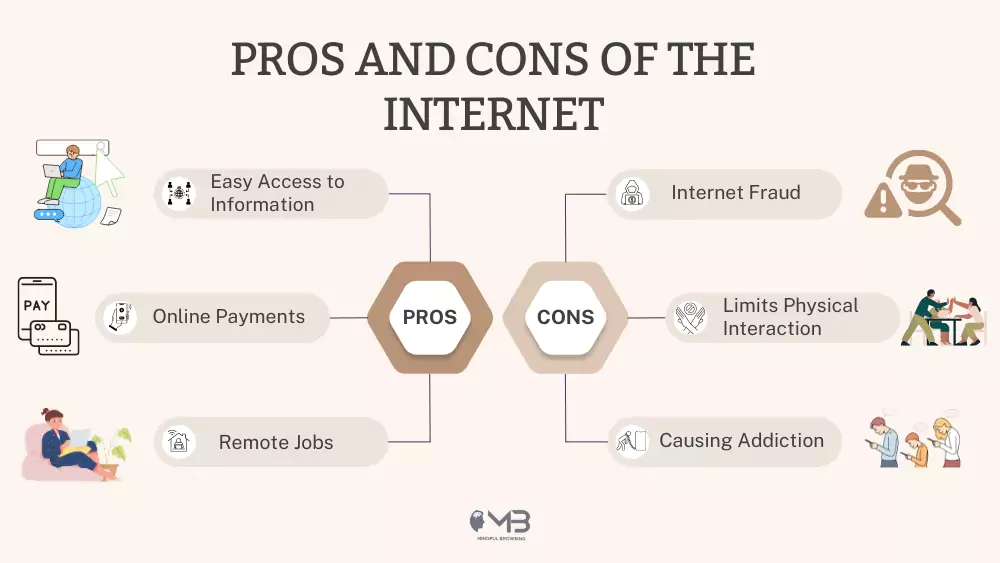
We all know the pros and cons of the internet, and we should not look at bad things on the internet. However, very few of us take mindful browsing seriously. Life before social media was simple (even in the days of infancy). But, as the intention grew through different social media features like reels, the mindless browsing, and malicious actors had taken a toll on us. This includes employing various security measures, from website blocking to considering a Google wifi VPN for secure browsing on any network.
We need a responsible approach to take full advantage of the Internet for our studies, self-growth, and work.
About the Author: Muhammad Moazzan