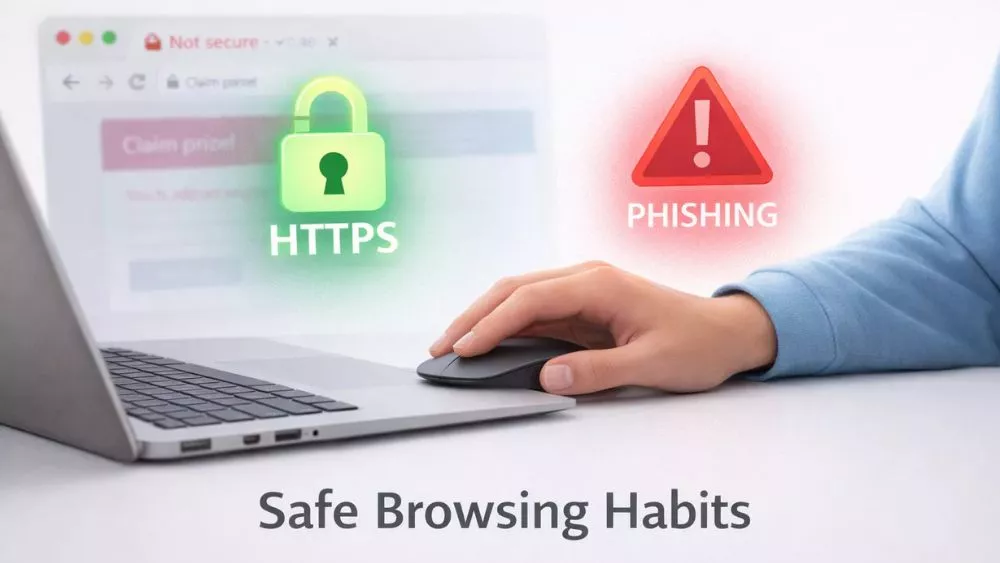
Scrolling the internet and want to keep your browsing safe and sound. One of the best practices is to look for “https” in the URL and check for a padlock icon. Most of us are scrolling through shopping online when suddenly a pop-up appears, screaming, “You’ve won a free trip!” Your heart races, cool, right? But then you click, and bam, your bank info vanishes. We’ve all felt that mix of excitement and “oh no” when browsing.
Privacy leaks or shady sites keep you up at night, especially if you fall into the trap of mindless browsing, where you click through links without verifying the source. However, including simple practices in your browsing routine can turn confusion into control. Let’s break down powerful practices you can use today against scams and phishing.
5 Best Practices When Browsing the Internet
Keeping browsers, apps, and device software updated weekly is a crucial best practice for internet browsing security, as hackers frequently exploit vulnerabilities in older versions to install malware undetected. Ignoring updates, such as those for Chrome, can lead to security breaches like ransomware attacks that lock files.
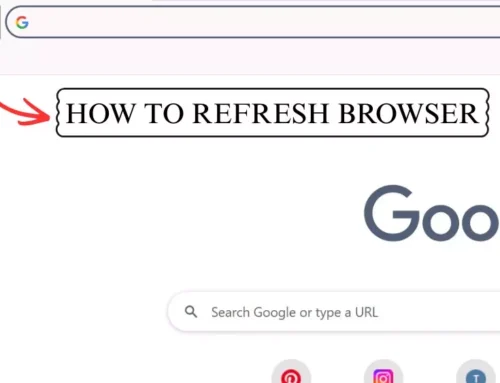
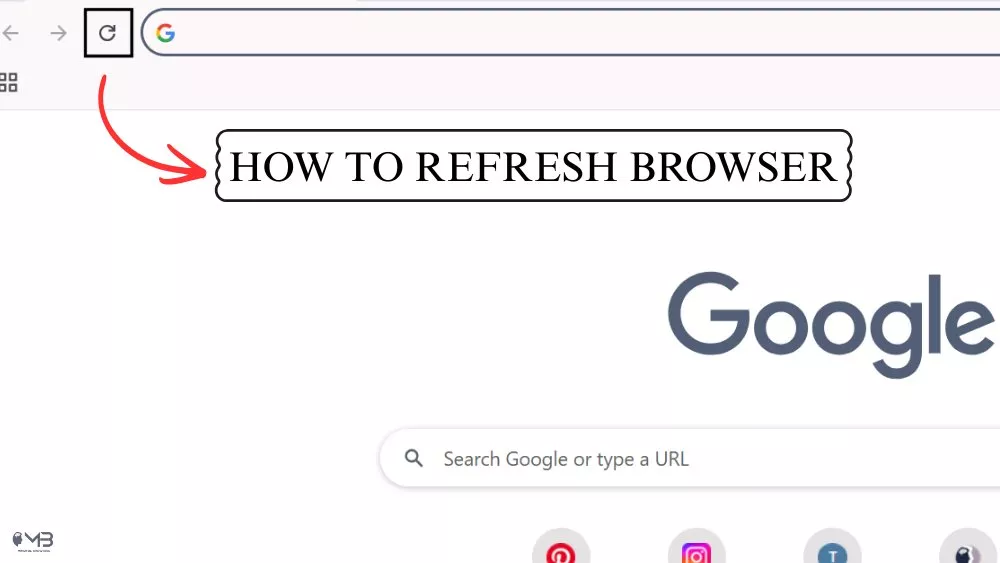
If your browser starts acting sluggish or stalls on security certificates, try refreshing it by clearing the cache or checking for pending updates. Take my friend Alex. He ignored Chrome updates for months. One day, a fake news site infected his laptop via an outdated flaw. Boom, ransomware locked his files, costing $500 to fix. Updates would’ve stopped it cold.
Let’s list down the best practices you can adopt against online scams and phishing.
1. Spot Fake Sites Before You Click
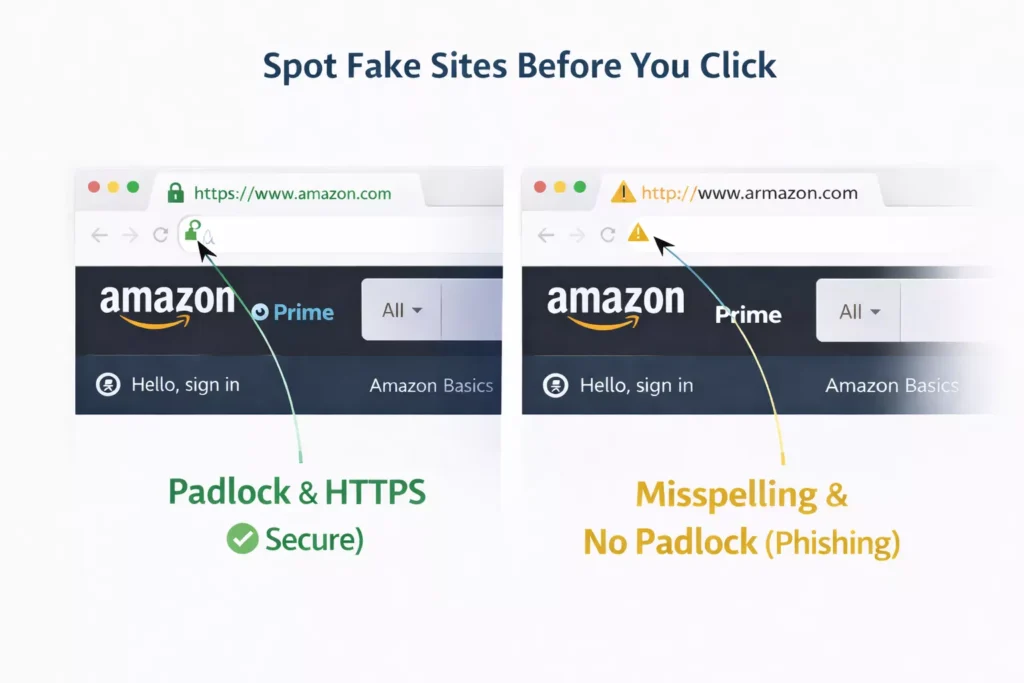
Ever land on a page that looks legit but feels off? That’s phishing crooks mimic banks or stores to grab logins. Check the URL first: Real sites use “https://” with a padlock icon. Hover over links (don’t click) to see the true destination. If it says “bankofamerlca.com” instead of the real one, close it.
Real-world fix: You’re buying eSIM for a trip. A search leads to “esimdeals.net” sketchy. Type the official site yourself. Tools like Google’s Transparency Report flag bad domains. Practice this, and fear fades.
2. Use Strong, Unique Passwords Everywhere
Reusing “password123” across sites? That’s like one key for your house, car, and safe. One breach, and they own you.
Best practice: Craft long passphrases like “BlueDogRunsFast2026!” and store them in a password manager (Bitwarden or LastPass are free).
Why it clicks: I once tested a client’s same password on email and shopping. Hackers hit the shopping site; her email followed. Managers generate and autofill uniques, plus alert on breaches. Start with two-factor authentication (2FA) too, texts or app codes add a lock.
3. Dodge Pop-Ups and Shady Downloads
Pop-ups yell “Your computer’s infected—download this fix!” Don’t. They’re often malware traps or gateways to inappropriate content that can compromise both your device and your sanity.
Best practice: Install an ad-blocker like uBlock Origin—free, blocks 90% of junk. For downloads, scan with antivirus (Avast or Windows Defender) first.
Story time: A teen I advised clicked a “free game” mod. It mined crypto on her PC, spiking bills. Now she right-clicks “inspect” on suspects or just walks away. You can too.
4. Go Private with VPNs and Incognito
Public Wi-Fi at cafes? Hackers sniff your traffic like sharks smell blood.
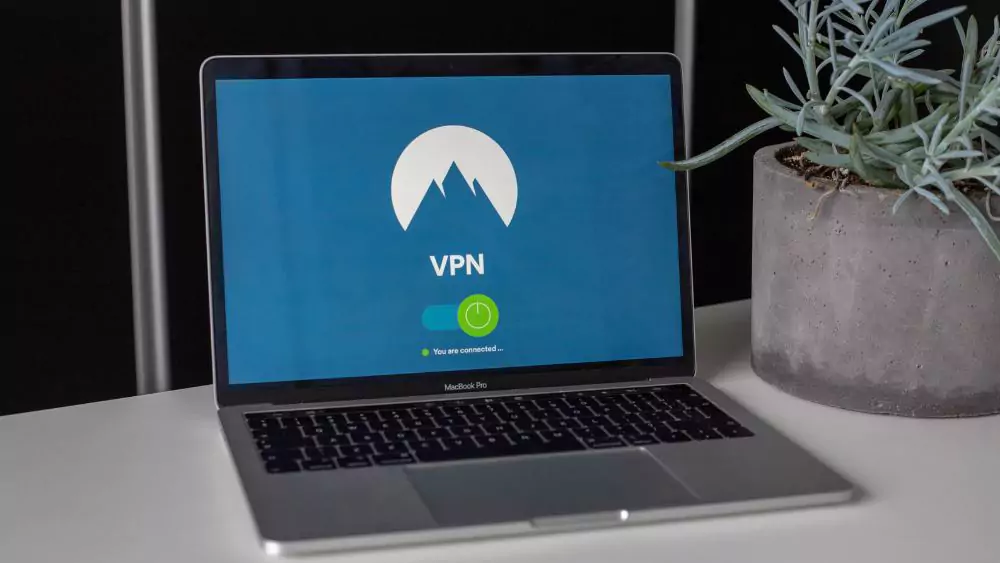
Best practice: Fire up a VPN (ProtonVPN free tier works great) to encrypt everything. Pair with incognito mode to avoid cookie trackers saving your searches.
It matters for travel fans, you’re researching flights at the airport? VPN hides your location from snoopers. Data from ExpressVPN shows it cuts man-in-the-middle attacks by 80%. Flip the switch before connecting.
5. Think Before You Share or Click Links
That email from “your bank” with a dire warning? Pause.
Best practice: Never click links; go to the site directly. Shares on social?
Ask: Does this expose my address or habits?
Example: Forwarded chain mails promise luck but harvest emails. I tell kids: “If it’s urgent, call the sender.” Builds that gut-check muscle.
Quick Habits Checklist for Daily Wins
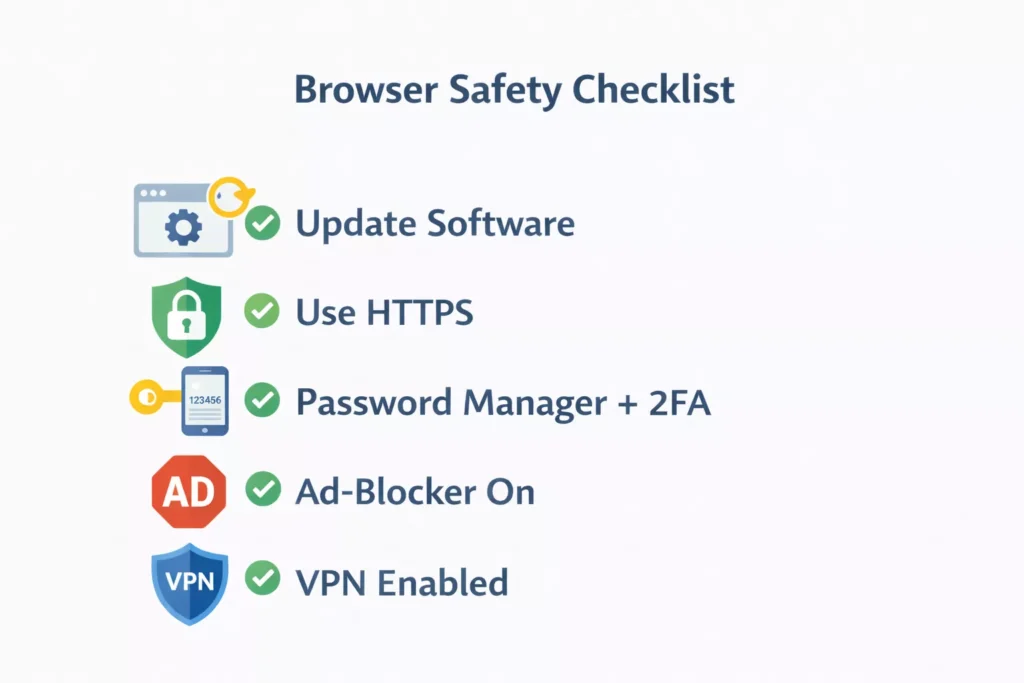
- Update everything weekly.
- Verify HTTPS and URLs.
- Use password manager + 2FA.
- Block ads; scan downloads.
- VPN on public nets.
- Direct-site visits only.
Nail these, and you’re golden.
Why Safe Browsing Habits Actually Matter
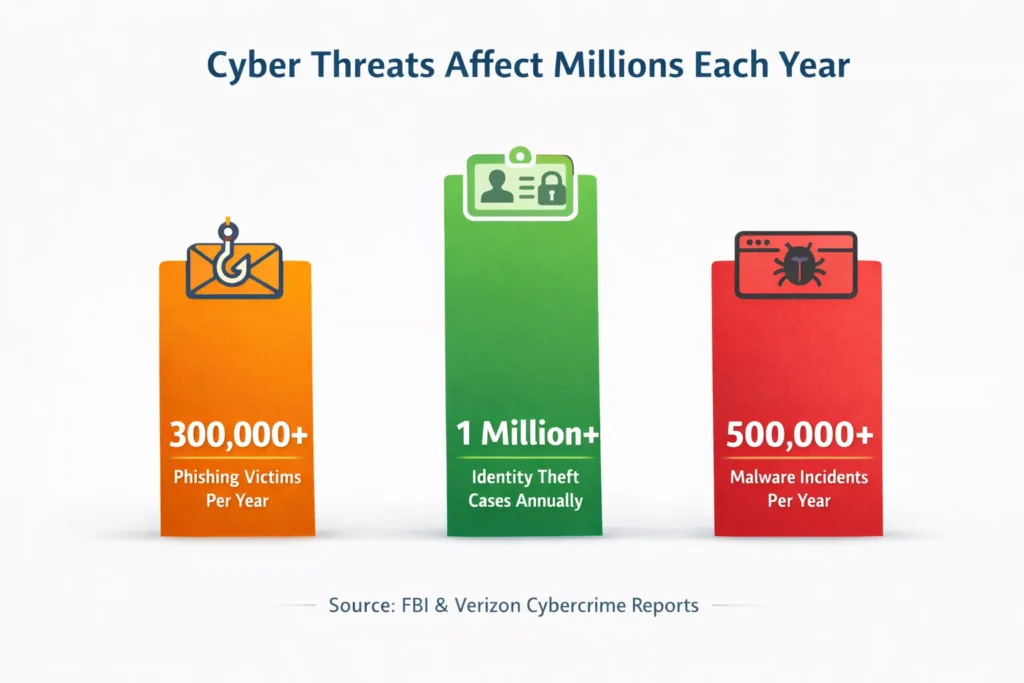
Bad clicks lead to real trouble. Scammers steal data from millions yearly think identity theft messes with your credit for years. One wrong link, and malware hijacks your device, spying on every move. But flip it: Strong habits block 99% of threats, per cybersecurity reports like those from Google or Norton. You browse freely, shop without sweat, and sleep easily. It’s like locking your door before bed basic, but it works.
Build Confidence One Click at a Time
Safe browsing isn’t perfect, but these steps shrink risks huge. You’ve got the tools, pick one today, like updates, and watch worry melt. Questions pop up? Test on safe sites first. You’re now equipped to surf smarter.
About the Author: Shanzaib Haider