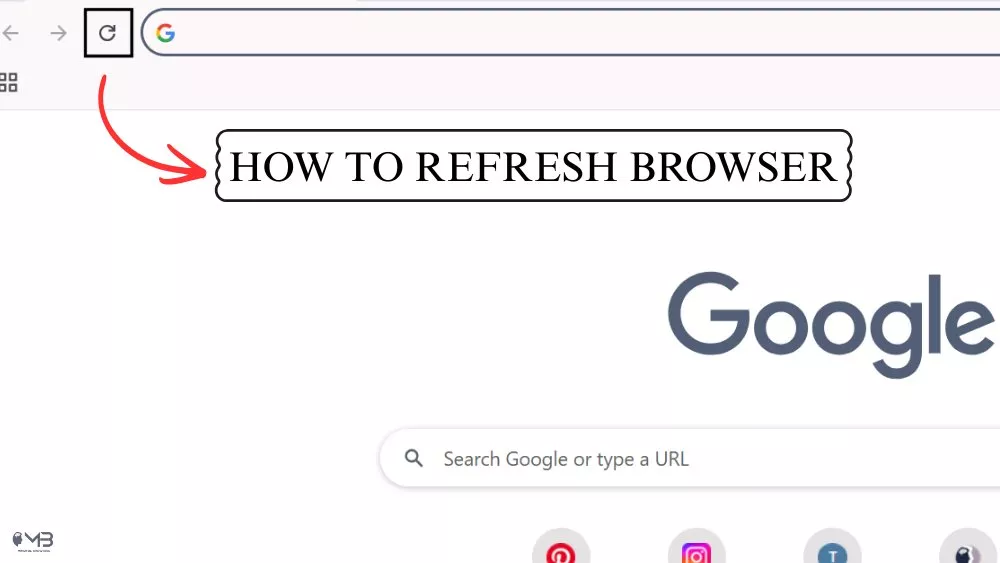
Need a quick fix for a website that’s acting up or just not showing the latest updates? You’re in the right spot. Refreshing your browser is just like giving your web page a gentle nudge—or sometimes a firm push—to get things moving again correctly.
Whether you’re checking for a new post, troubleshooting a frozen screen, or just making sure you’re seeing the latest version of a site, here’s we are sharing go-to guide for hitting refresh just like a pro.
First Things First: What Does Refreshing Actually Do?
Let’s be simple. When you refresh (reload), basically you’re asking your browser of all kinds to fetch the webpage all over again. That means two key things would happen:
- You get the most up-to-date content from the website’s server—perfect for seeing new comments, live scores, or a freshly published article.
- The page’s code runs again from zero, which can clear out little errors right away that might have popped up during the first load.
Your Trusty Sidekick: The Refresh Button
Look up at the top of your browser window, left of the address bar. See that circular arrow? Right? That’s your refresh button. One click tells your browser to reload that page right away.
Quick tip: If the circle has a little “X” on it, the page is still loading. Clicking it will stop the load. Once the page is ready, the X goes away and it’s back to being your trusty refresh button.
For the Keyboard Lovers: Shortcuts That Save Time
If you like to keep your hands on the keys, these shortcuts will become second nature:
- Normal refresh: Just hit F5 (on Windows/Linux) or Cmd + R (on a Mac).
- The “hard refresh” – your secret weapon: Sometimes a normal refresh doesn’t cut it because your browser is hanging onto an old, stored version of the page (that’s called the cache). A hard refresh forces it to grab everything fresh from the website.
- Windows/Linux: Press Ctrl + F5 or Ctrl + Shift + R.
- Mac: Press Cmd + Shift + R. (If you’ve recently changed your default browser on Mac, these shortcuts will still work across Safari, Chrome, and Firefox)
Use a hard refresh when a site looks broken, styles are missing, or you’re sure you’re not seeing the latest updates.
Don’t Forget the Right-Click
Sometimes it’s easiest to just right-click. Click anywhere on a blank area of the page (not on a link or image) to bring up a menu, then select “Reload” or “Refresh.” On a Mac, you can also Ctrl + Click or use a two-finger tap on the trackpad.
Wrapping It Up
And that’s really all there is to it. Start with a simple refresh—click the button or tap F5. If things still seem off, try the hard refresh shortcut to pull in a completely fresh copy. And remember, if all else fails, a cache clear might be the final step (but that’s a story for another day).
Once you get the hang of these tricks, you’ll solve most common browsing hiccups in seconds. Here’s to smoother browsing ahead.
Also Read:
About the Author: Hamza Hamid