Your Mac is a powerful machine. Learning how to change default browser on Mac gives you control over your online routine instead of letting your system decide for you. With so many browsing apps available today, picking the right one feels more personal than technical. Some users swear by speed, others by privacy, and many switch back and forth depending on mood, tasks, or just one mistake with the browser, and you’re off to hunt for another.
This guide walks you through the process on how to change default browser on Mac in a relaxed, step-by-step manner so your Mac works exactly how you want it to.
How to Choose the Best Suited Default Browser for Mac
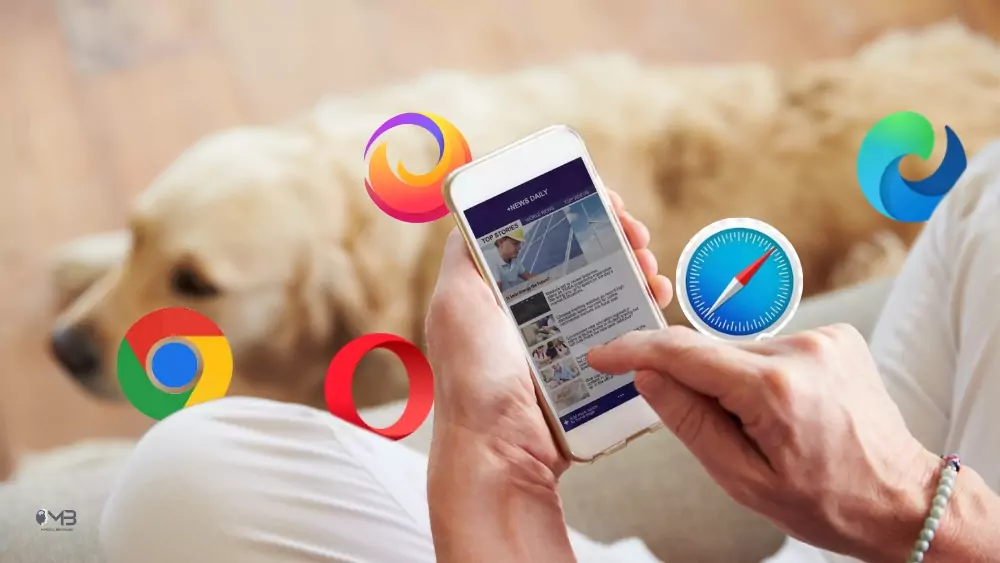
Let’s discuss what to think about before getting into how to switch browsers. Safari’s slick with Apple ecosystem perks like battery sipping and iCloud sync, and is already a set default browser for Mac. When it comes to the great Chrome vs Safari debate, there isn’t a single “right” answer.
Chrome is a beast when it comes to extensions and web compatibility, crushing through Google integration, though it guzzles more RAM. Then there’s Brave, I mean, is Brave browser safe? As many people aren’t familiar with it all that much.
Spoiler: Yes, it is indeed safe. It blocks trackers out of the box and feels zippy. Before making changes, decide which browser suits your needs. Ask yourself the following questions to determine your final choice:
- Do I care more about speed, privacy, or design?
- Do I want tons of extensions or simplicity?
- Is the browser safe for daily use?
This decision makes everything else easier. This is also where many users begin comparing features and weighing the pros and cons of the internet, from convenience and information access to distractions and privacy concerns.
Guide on Changing Your Default Browser on Mac
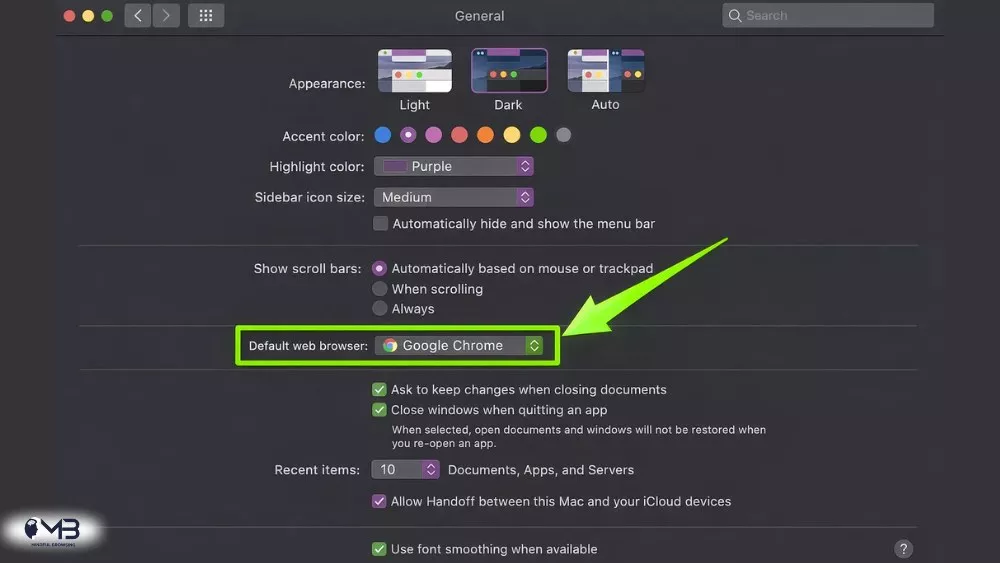
1. Open Your Mac’s System Settings
- Click the Apple logo in the top-left corner
- Select System Settings
- Choose Desktop and Dock
- Scroll down to the Default web browser
This is the central control panel for how to change default browser on Mac and where the setting actually lives.
2. Set Your New Default Browser
Now it’s a simple switch.
- Click the drop-down menu next to Default web browser
- Select your chosen browser
- Close System Settings; the change saves automatically
No matter what you choose, understanding how to change default browser on Mac guarantees that you won’t be limited to a device that doesn’t meet your needs.
If it becomes apparent that you like the Google Ecosystem the most, then you can make chrome default browser easily with either of the options above or through either of the buttons typically found at the top of Chrome settings that will show up when you click on the button marked “Set default browser”.
3. Dry Run it First
Before moving on to the next step, ensure that:
- You have clicked on a link in an email or a document.
- If it opens in your set default browser, you are good to go.
- Otherwise, you need to repeat the steps given above.
This will confirm process of how to change default browser on Mac was accomplished successfully.
4. Extra Advice for Easy Browsing
In order to have your new browser working efficiently:
- Make bookmarks of your most important websites
- Add the extensions that are necessary
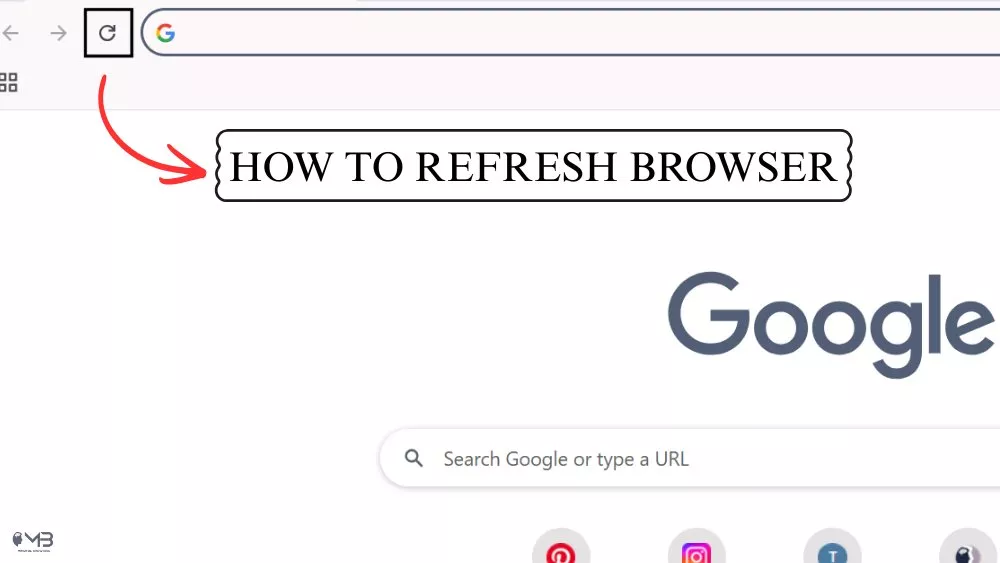
- Learn different ways to refresh your browser quickly (usually it’s either a keyboard shortcut or a menu)
- Keep cleaning your cache regularly for it to keep working fast.
This will help ensure that your browser operates effectively in accordance with your preferences and requirements.
5. Other Devices and Consistency
The focus of this article is on how to change default browser on Mac, but users frequently have questions about the process of how to change default browser iPhone; Apple allows you to set up custom defaults on both devices to provide a consistent experience.
In addition to providing a consistent experience across both platforms, the flexibility provided by Apple in setting custom default web browsers on both the Mac and iPhone will continue to give users a sense of power over their digital life.
Why This Matters
The web is your world of working, learning, playing, and connecting. There are multiple browsing apps that you have access to, and with this growing number of choices comes a greater emphasis on creative freedoms. Once you master how to change default browser on Mac, you can make the technology work for you rather than having to be “molded” by the technology.
The internet, when used properly, can provide an incredible amount of power. As an example, being able to find the optimum “setup” will allow you to maximize your enjoyment of the good aspects and minimize your exposure to the bad aspects. Now, your Mac will “perform” as you want it to; it will no longer be forced upon you by the software you use.
About the Author: Hamza Hamid